> ## Documentation Index
> Fetch the complete documentation index at: https://docs.refup.io/llms.txt
> Use this file to discover all available pages before exploring further.

# Officiating Multiple Assignments on the Same Day

To make yourself available for an assignment, you create an *offer*. An offer is created for a *bid* which is a request for a specific official type for a match at a certain price (ex: Center Referee for Boulder vs Denver on 3/5 paying \$50). Normally, RefUp.io will only make a single assignment per day for each official. If you would like to work multiple offers in the same day, link them with an *offer group*.

To create an offer group:

1. Navigate to [My Offers](http://www.refup.io/matches/offers)
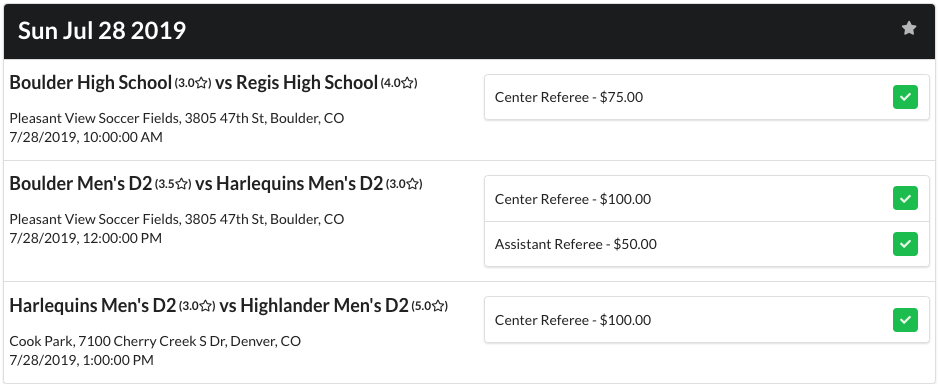
   <img src="https://mintcdn.com/refup/9OzfcKznGeEk1MJ5/images/officials/officiating-multiple-assignments-on-the-same-day/offers-1.png?fit=max&auto=format&n=9OzfcKznGeEk1MJ5&q=85&s=2015ca8a857e9f2544d456ee9644c9c2" class="ui-screenshot" width="939" height="387" data-path="images/officials/officiating-multiple-assignments-on-the-same-day/offers-1.png" />
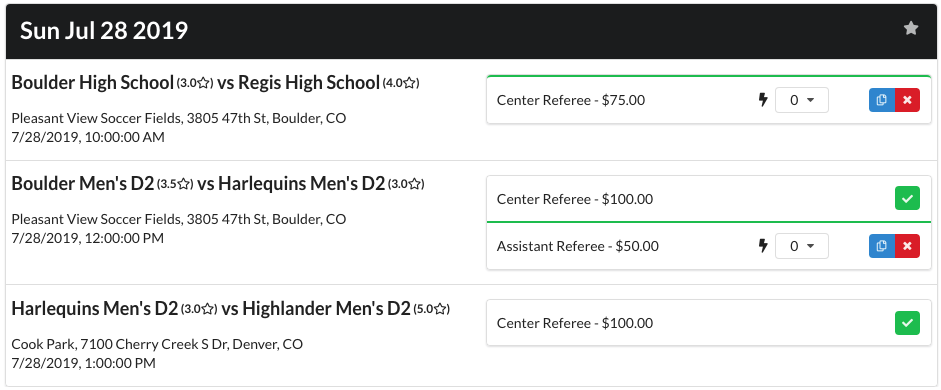
2. Click the <img src="https://mintcdn.com/refup/9OzfcKznGeEk1MJ5/images/check-green.png?fit=max&auto=format&n=9OzfcKznGeEk1MJ5&q=85&s=5f43ab085ac80543bf9f3cfc665580c9" class="ui-button" width="44" height="40" data-path="images/check-green.png" /> next to the bids you would like to officiate. This official has created offers for the first and third bids.
   <img src="https://mintcdn.com/refup/9OzfcKznGeEk1MJ5/images/officials/officiating-multiple-assignments-on-the-same-day/offers-2.png?fit=max&auto=format&n=9OzfcKznGeEk1MJ5&q=85&s=ac3c07e4a378b464481dba9f542c4a39" class="ui-screenshot" width="941" height="390" data-path="images/officials/officiating-multiple-assignments-on-the-same-day/offers-2.png" />
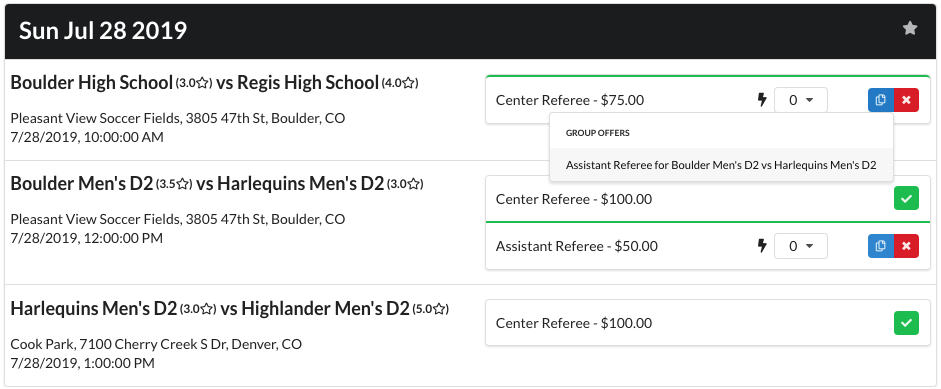
3. Click the <img src="https://mintcdn.com/refup/9OzfcKznGeEk1MJ5/images/officials/officiating-multiple-assignments-on-the-same-day/copy-blue.png?fit=max&auto=format&n=9OzfcKznGeEk1MJ5&q=85&s=e14a89d18027fb19ff4982d1b6eeeb73" class="ui-button" width="25" height="20" data-path="images/officials/officiating-multiple-assignments-on-the-same-day/copy-blue.png" /> next to the first offer you would like to group. Then select the second offer from the popup.
   <img src="https://mintcdn.com/refup/9OzfcKznGeEk1MJ5/images/officials/officiating-multiple-assignments-on-the-same-day/offers-3.png?fit=max&auto=format&n=9OzfcKznGeEk1MJ5&q=85&s=03d2b777633c0e3d5f61c8646f4fde99" class="ui-screenshot" width="941" height="389" data-path="images/officials/officiating-multiple-assignments-on-the-same-day/offers-3.png" />
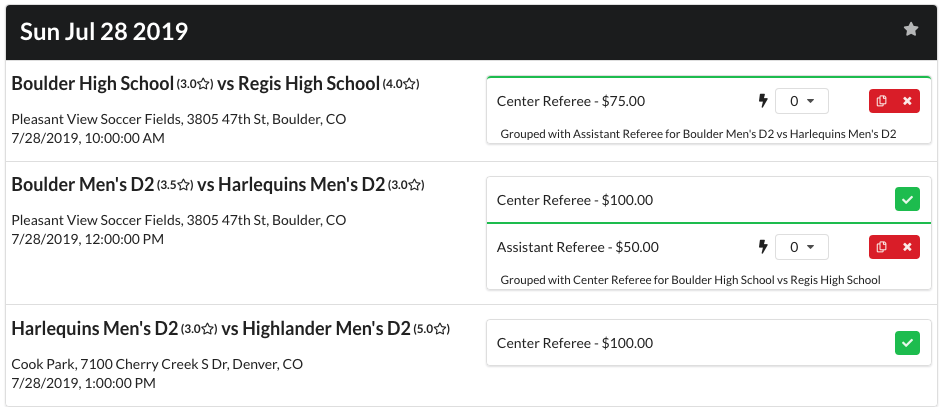
4. Offers in a group will show the offers in their group.
   <img src="https://mintcdn.com/refup/9OzfcKznGeEk1MJ5/images/officials/officiating-multiple-assignments-on-the-same-day/offers-4.png?fit=max&auto=format&n=9OzfcKznGeEk1MJ5&q=85&s=6a18a1bc3e0a0301e2b8af9c1c2c9d8c" class="ui-screenshot" width="941" height="410" data-path="images/officials/officiating-multiple-assignments-on-the-same-day/offers-4.png" />
5. This official will either win both offers in the offer group or neither offer. They will not win just one of the offers.
6. To remove an offer from an offer group, click the <img src="https://mintcdn.com/refup/9OzfcKznGeEk1MJ5/images/officials/officiating-multiple-assignments-on-the-same-day/copy-red.png?fit=max&auto=format&n=9OzfcKznGeEk1MJ5&q=85&s=ae539530c4b2a778686cb87b6e6f50b8" class="ui-button" width="20" height="19" data-path="images/officials/officiating-multiple-assignments-on-the-same-day/copy-red.png" />
